One reason why you might want to delete to remove apps on the Samsung Galaxy Tab is to free up some space for new apps you want to check out and try. All apps that you install and add from the Android market can be removed except for apps that come pre-installed on the tablet. So apps like Blockbuster, Kindle, Slacker and movie cannot be removed as it is a part of the ROM of the device. All other Apps that you have installed and added can be removed with a few simple steps listed below.
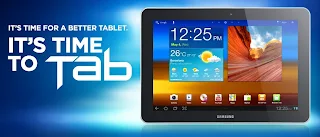
How to remove, delete or uninstall apps on the Samsung Galaxy Tab
1. On the Home screen tap on menu
2. Select settings
3. Now choose applications
4. Tap manage applications
5. Select App you want to remove
6. Now tap the uninstall button
7. Select OK
8. You're done and the app removed
If you are using Samsung Galaxy Tab 10.1 there it is even simpler as you do not need to go to the app settings to remove apps
1. On the home screen tap on the Apps icon found on the right-hand side
2. Tap and hold the app you wish to remove
3. Drag the icon of the app to the red remove bin
4. Tap OK
5. You're done
Please leave a comment below to continue this discussion.
Comments
Post a Comment