Facebook gives their users the ability to set who can reply to your public posts. This is good if you have a lot of subscribers and you want to share but you do not want your subscribes to be able to comment on your posts. In-fact this is a option being used by a couple of famous bloggers on Facebook. You can subscribe to them but cannot reply or comment on their posts. This can also be done with your friends and friends of friends. So when you update your Facebook status with a public post you can choose to have your friends comment on your posts. You can also allow friends of friends to be able to comment on your posts. These privacy options will need to be chosen by you and once set you can control who has the right or ability to reply or comment on your public posts. If you choose public then anyone can comment on your posts - this will include public + subscribers.
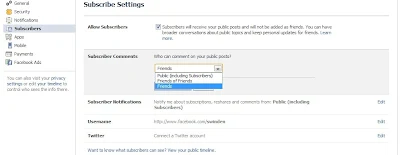
Facebook commenting privacy options and how to set
1. Login to Facebook
2. Click on the drop-down arrow beside home found on the top right-hand corner.
3. Select Account Settings
4. Now click on Subscribers
5. Beside Subscriber Comment and Who can comment on your public posts: Public (including Subscribers) click on Edit.
6. You can now choose between Friends, Friends of Friends and Public (including Subscribers)
7. Choose the best option that suits you and then click on Save Changes
8. You're done.
This way you can choose who can comment on your public posts made on Facebook. If you want the visuals please check the video below.
http://www.youtube.com/watch?v=5h7knoP3H44
Comments
Post a Comment