This post will explain how to send your PDF docs to iTunes to sync them with your iBooks. It will also allow you to open any PDF document on the web and read it with iBooks. With the method listed below you can send any Doc or even web page to iTunes and read it with iBooks.
How to send PDFs to iTunes for iBooks Syncing.
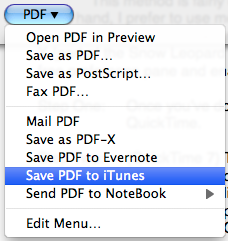 1. Open iBooks
2. Click on the iTunes icon and select " Make Alias"
3. Drag your newly created Alias and drop it in your home folder.
4. Your Home Folder ==> Library ==> PDF Services (This will ensure that iTunes becomes an option whenever your click on a PDF icon or a print dialog)
Now when you click print under PDF it's going to ask "iTunes Alias"
You can rename your PDF alias to "Send PDF to iTunes"
Now whenever you have a web page or a document open that you'd like to read in iTunes
Click on File ==> Print ==> Click on the PDF button in the lower left and choose your menu items from iTunes. The document will be saved as a PDF and sent straight to your iBooks.
You can also simply create a folder and then follow the directions above.
[Tip from the Apple Blog]
How to send PDFs to iTunes for iBooks Syncing.
 1. Open iBooks
2. Click on the iTunes icon and select " Make Alias"
3. Drag your newly created Alias and drop it in your home folder.
4. Your Home Folder ==> Library ==> PDF Services (This will ensure that iTunes becomes an option whenever your click on a PDF icon or a print dialog)
Now when you click print under PDF it's going to ask "iTunes Alias"
You can rename your PDF alias to "Send PDF to iTunes"
Now whenever you have a web page or a document open that you'd like to read in iTunes
Click on File ==> Print ==> Click on the PDF button in the lower left and choose your menu items from iTunes. The document will be saved as a PDF and sent straight to your iBooks.
You can also simply create a folder and then follow the directions above.
[Tip from the Apple Blog]
Comments
Post a Comment